Why You Need This Checklist
You finally made the switch to a MacBook — and then reality hit. The red X button does not actually close apps. Command X does not cut files the way you expect. The keyboard shortcuts you built into muscle memory over years of Windows use suddenly do nothing, or worse, do the wrong thing entirely. Sound familiar? You are not alone, and you are not doing it wrong. The Mac is just different in ways nobody warns you about before you buy.
Here is what nobody tells you upfront: the MacBook hardware is excellent, but the out-of-the-box software experience assumes you have been using a Mac your whole life. If you came from Windows — whether a basic laptop or a premium Microsoft Surface — there are dozens of small friction points that quietly drain your productivity every single day. Closing apps, cutting and pasting files, switching between windows, managing storage, typing efficiently, keeping your screen private in public — all of it feels slightly off until you fix it.
Imagine opening your MacBook tomorrow morning and having it behave the way you expect. The X button closes apps like it should. Command X cuts files exactly like Ctrl X used to. You can see app previews when switching between windows. Your Android phone syncs notifications to your Mac. Your grammar is checked locally with no subscription. Your screen blurs automatically when someone peeks at it in a coffee shop. Your storage stays clean even when you uninstall apps. That is not a fantasy — that is what seven free apps can do for you today.
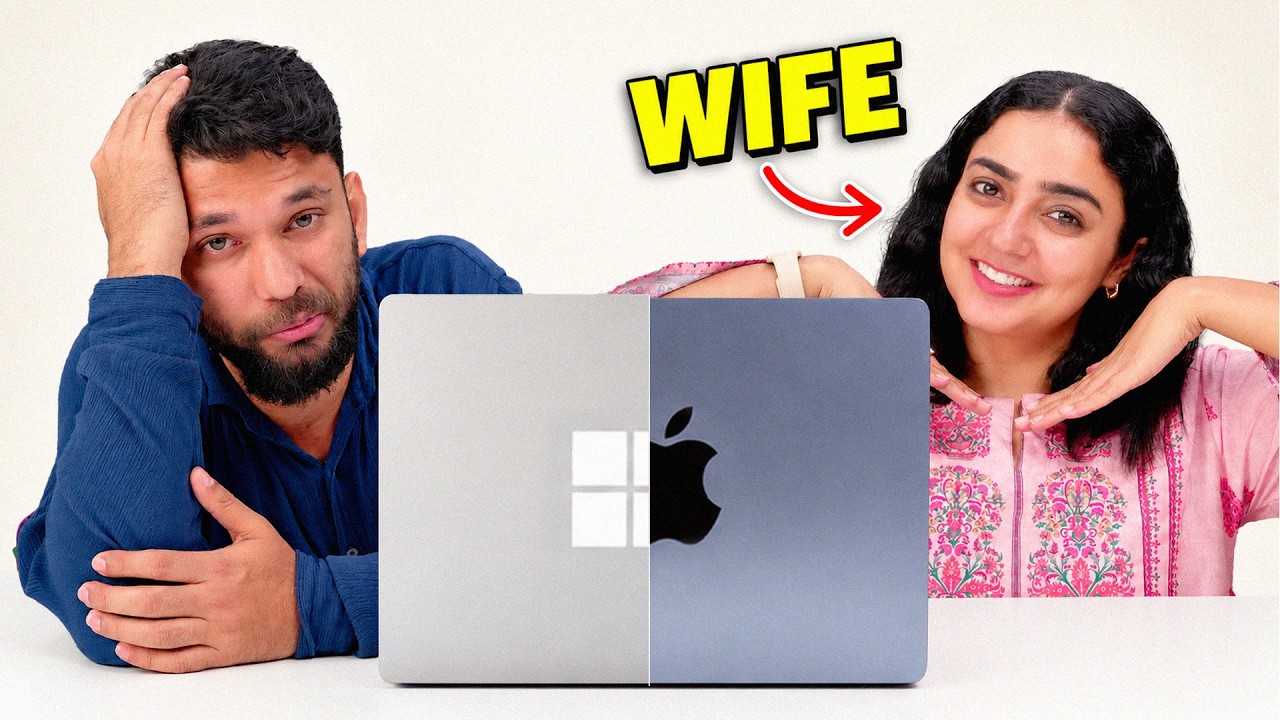
TechWiser has spent years testing tools for exactly this kind of practical, real-world use case. In this video, host Pratik did not just research these apps in the abstract — he installed all seven on his wife's brand-new M4 MacBook Air after she switched from a Microsoft Surface, watched her use them daily, and had her rate each one honestly. These are tools that earned 8, 9, 9.5, and even 10 out of 10 ratings from a real Windows-to-Mac switcher with real work to do — video calls, email, content creation, and multitasking across many tabs.
This checklist walks you through every app, what it solves, how to set it up correctly, and exactly what to look for. Download it, open your MacBook, and work through it step by step. By the end, your Mac will feel like yours.
What's Inside — Preview
Every checklist item comes with actionable notes to guide you — things like "Don't forget to do this before you start," "Avoid this common mistake," or "Set a reminder for 30 days out." Nothing vague, just clear next steps.
DOWNLOAD
Download and install WhatsApp and (also called Warnd) — the first essential app for Windows switchers
DO
Enable 'Quit to Close' in Warnd so the red X button closes apps instead of minimizing them
DO
Enable Cut and Paste file shortcuts via Warnd so Command X cuts files just like Ctrl X on Windows
DO
Enable app preview thumbnails in Warnd for the Command-Tab app switcher
DO
Activate Clipboard History in Warnd so you can access previously copied text and content
+ 17 more action items inside...
 ▶ Watch the source video on YouTube